Your first week starts here
SmartTimetable tutorial.
Set up the app, plan your family's week, and keep everyone moving toward what matters.
Start with these steps
You can take them one at a time. A parent should create the account and set up each child's profile.
Screens from SmartTimetable 5.6.32 in light mode. Your content may differ.
01 / INSTALL
Get the Android app
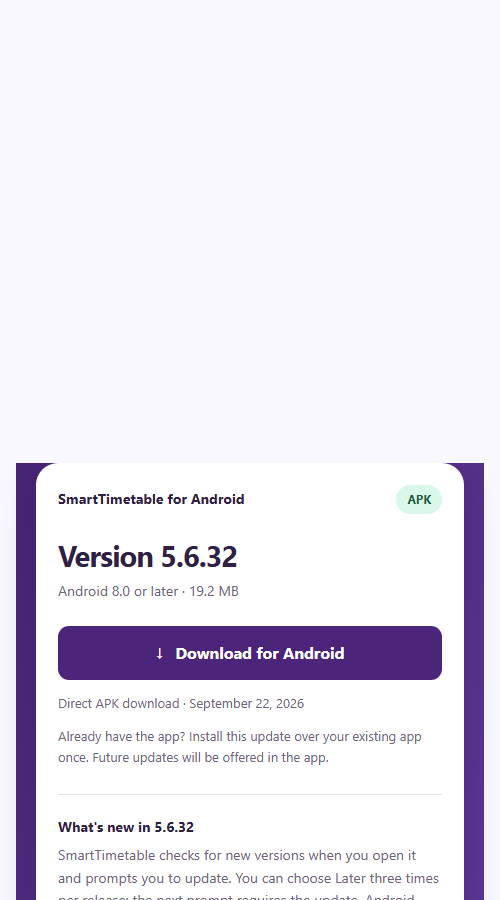 Tap Download for Android on this website. Android then guides you through installation.
- On your Android device, download SmartTimetable.
- Open the APK and allow your browser or file manager to install it if Android asks.
- Tap Install, then Open. If you already use the app, install over it without uninstalling.
02 / ACCOUNT
Create your family account
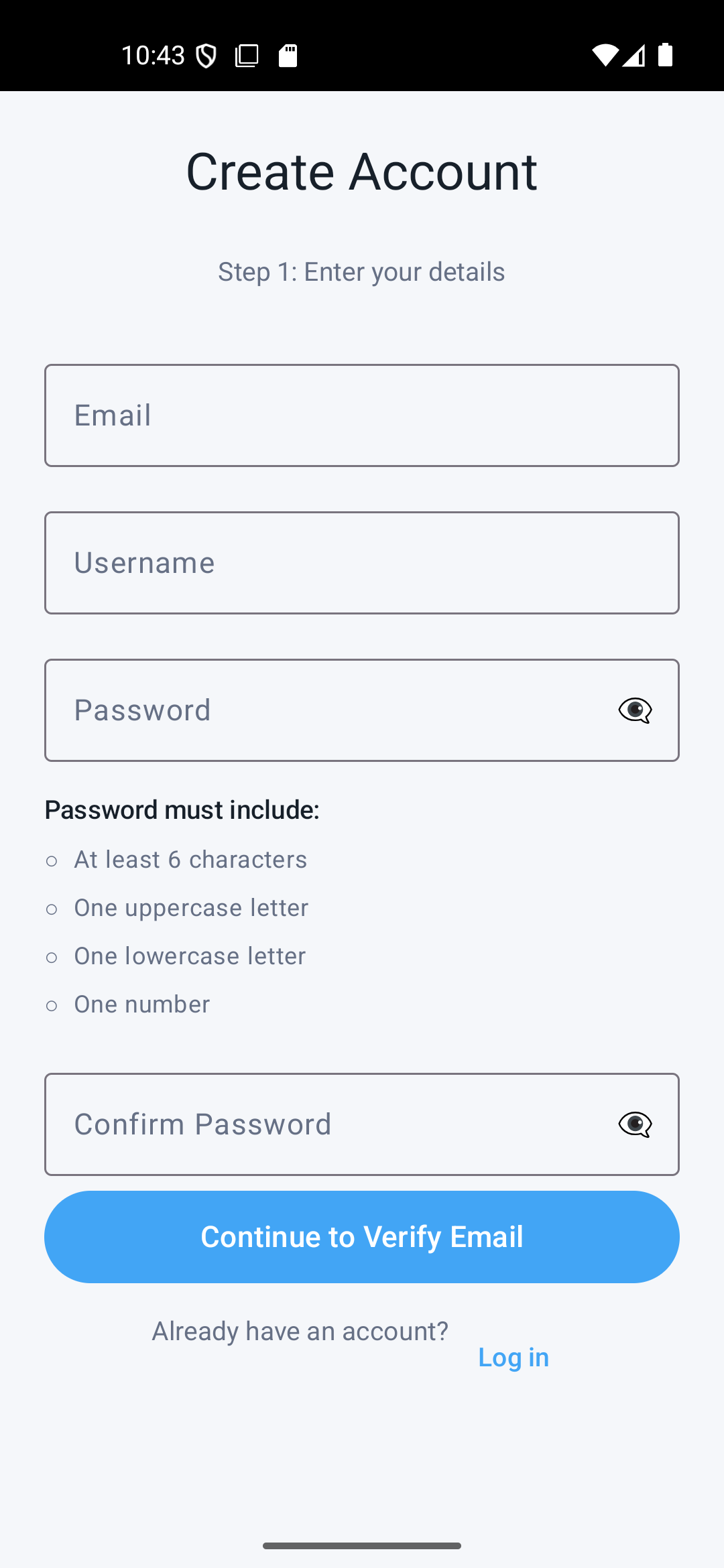 Enter account details, then continue to email verification.
- Tap Sign up and enter your email, username and password.
- Enter the verification code sent to your email.
- Finish the introduction to reach the app.
03 / FAMILY
Add a child
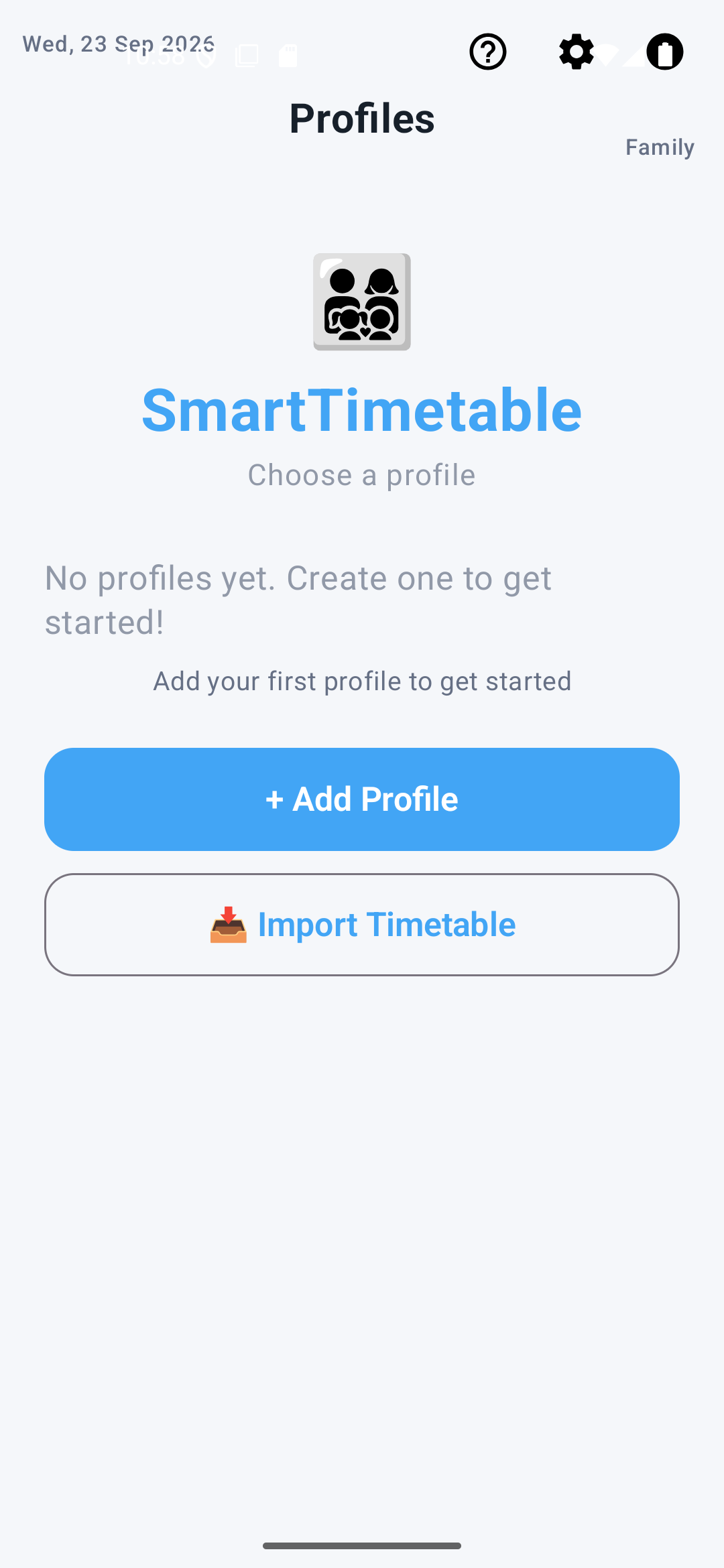 On the Family screen, tap Add Profile.
- Open the Family tab and tap Add Profile.
- Enter the child's name and age, then tap Save.
- Tap the profile to open that child's week.
04 / PLAN
Build a simple timetable
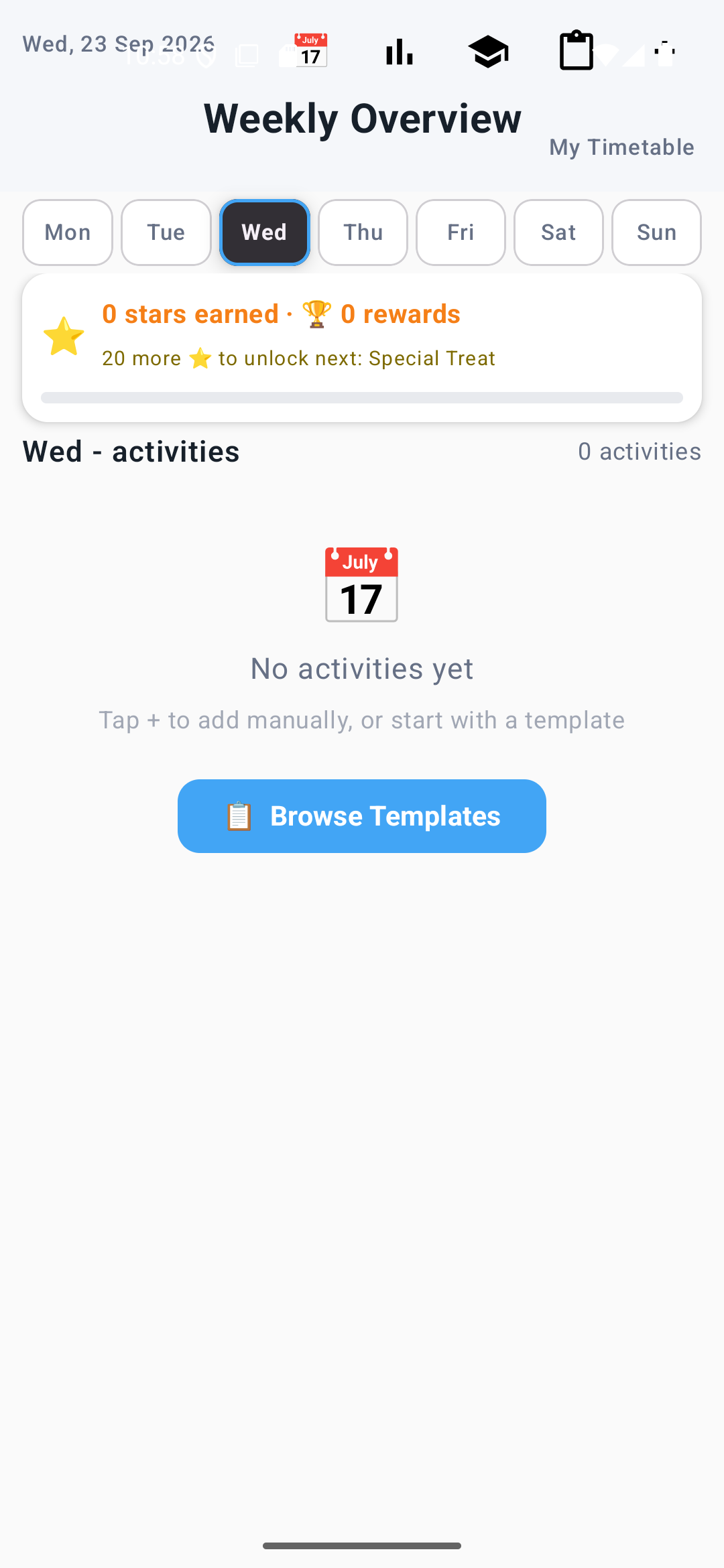 Choose a day in Weekly Overview; start with a template or add an activity.
- Open Schedule and choose a day.
- Tap +, then add an activity name, start and end time, and category.
- Tap Save. Repeat for the important parts of your week.
05 / DO
Add tasks and chores
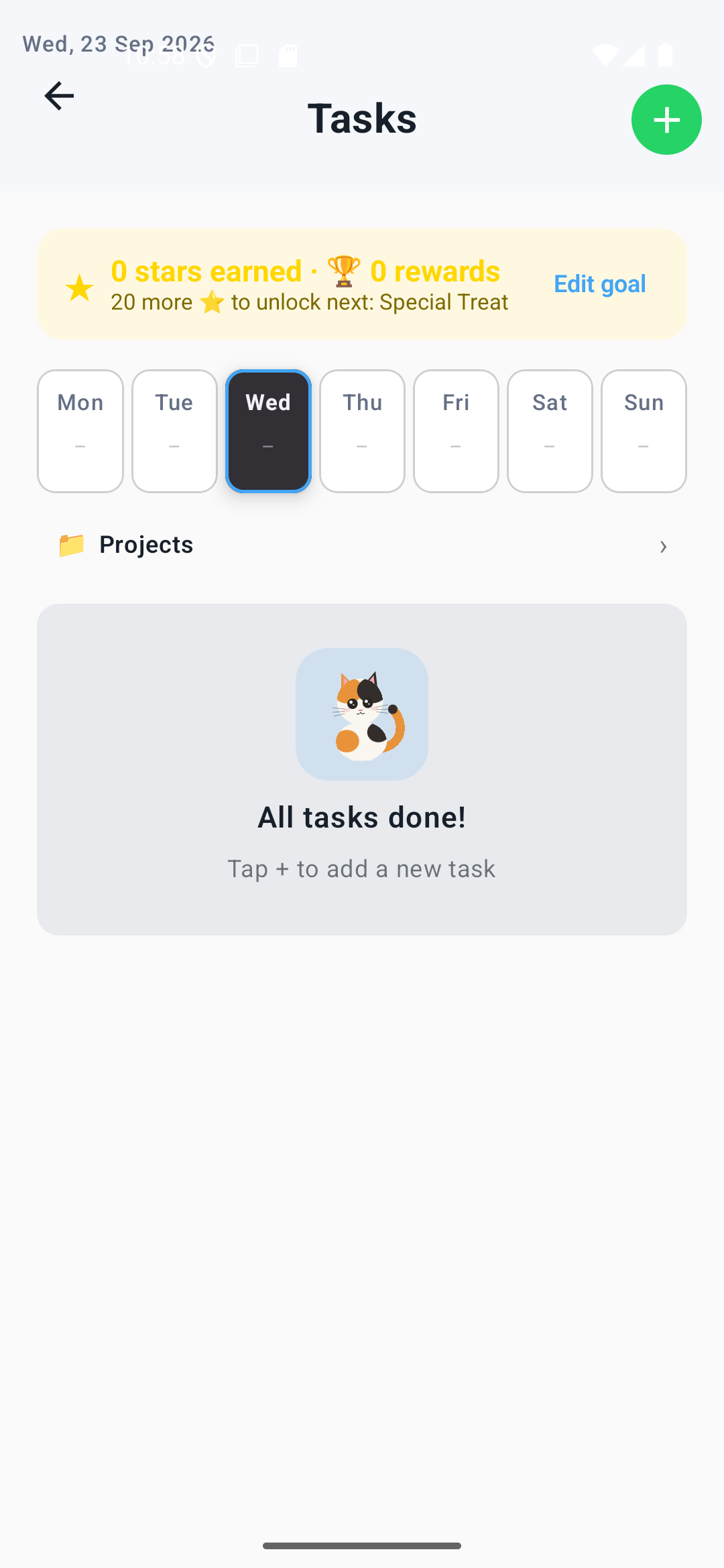 On Tasks, tap the green + to add work.
- Open Tasks and tap + to add a task.
- For repeating household work, switch to Chores and tap +.
- Choose a star reward if you want to recognise progress.
06 / PROTECT
Set the Parent Lock
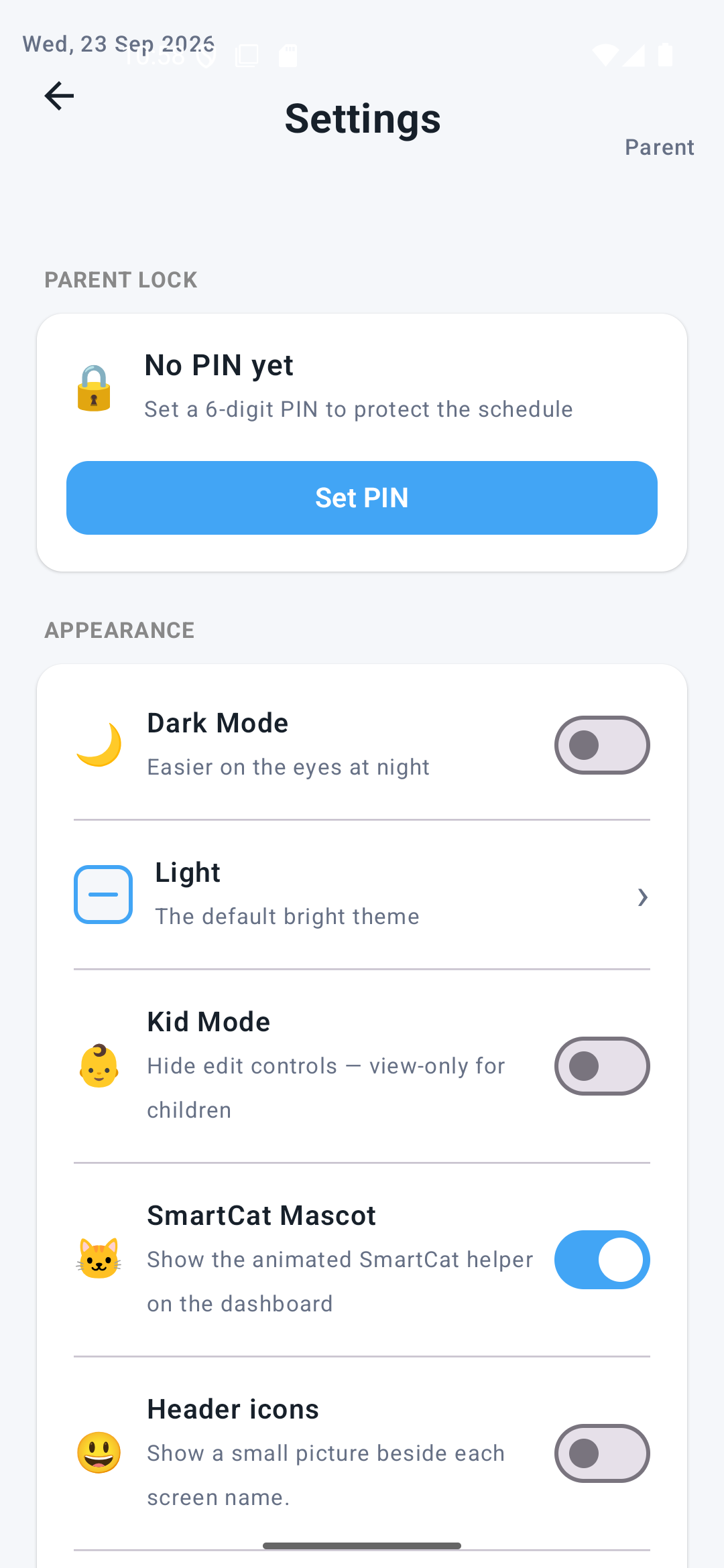 In Settings, tap Set PIN.
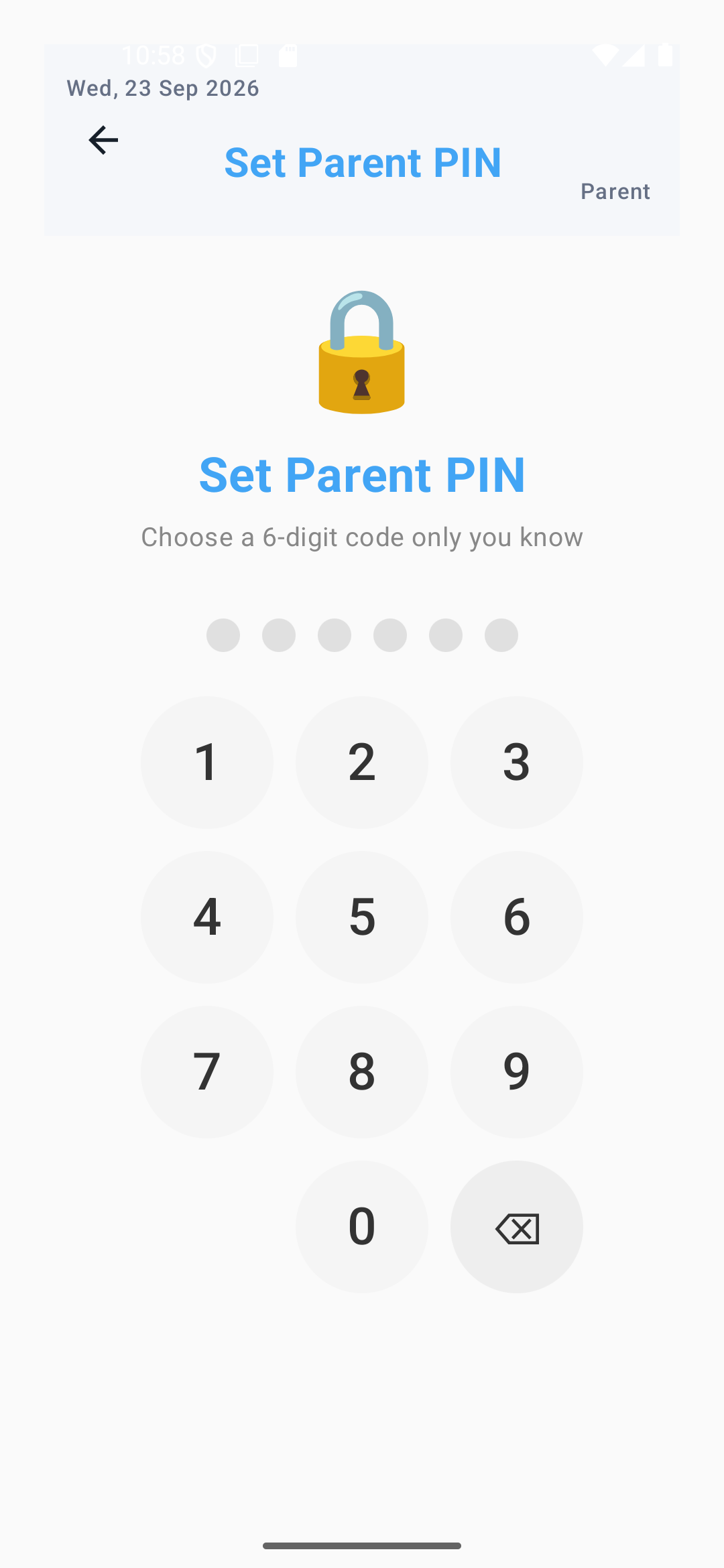 Enter your six-digit Parent PIN.
- Open Settings → Parent Lock → Set PIN.
- Set and confirm a six-digit PIN to protect editing and family settings.
- Turn on Kid Mode in Settings when handing the device to a child.
Keeping SmartTimetable updated
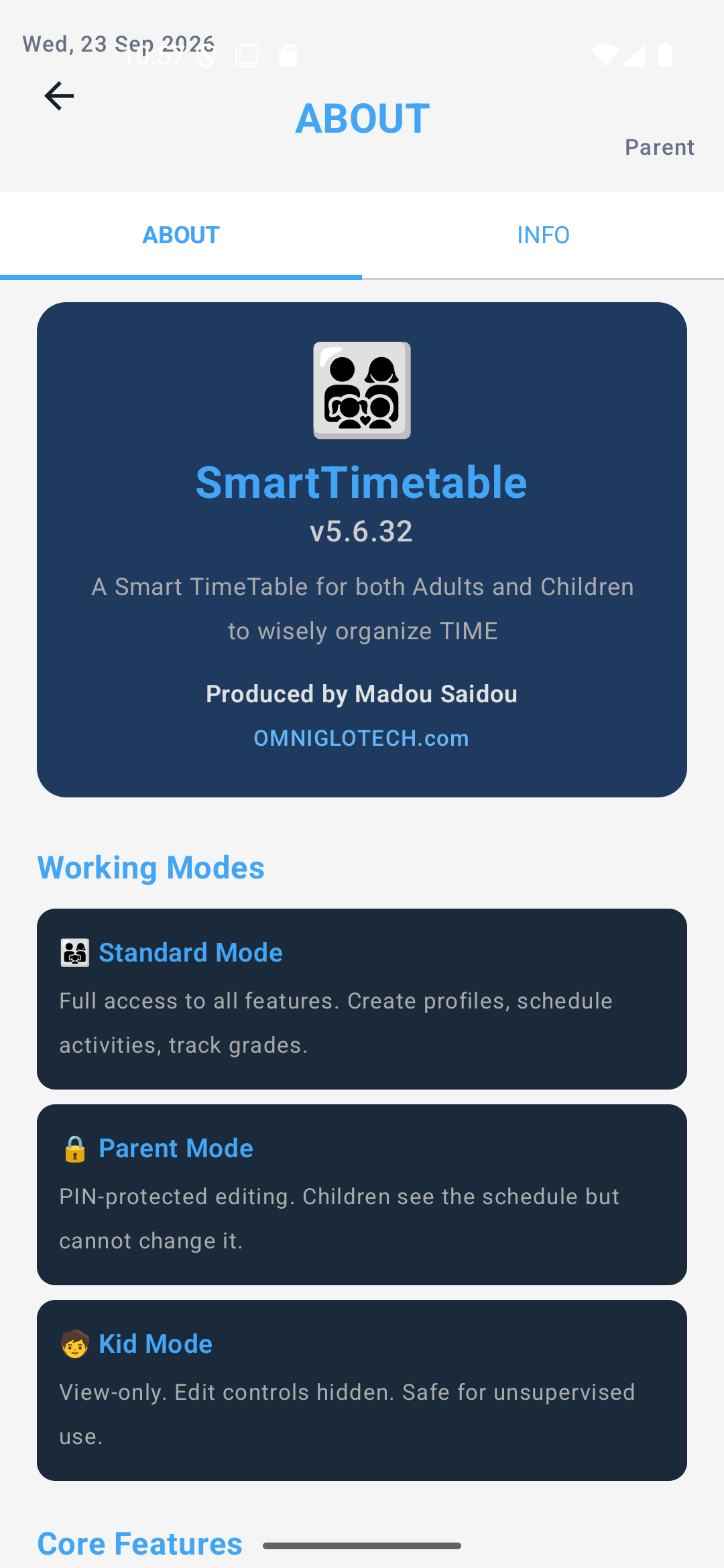 About shows your installed version; the app offers a newer release when one is available.
The app can check for a newer release and offer to download it when one is published. Android asks you to confirm installation.
You can also install the current APK from our download page over your existing app. Keep the app installed so its local data stays in place.
If a download or installation fails, contact us before uninstalling anything.
Download the manuals
Choose the guide for the person using the app. These PDFs describe earlier app versions, so some screens may look different in the current release.
FOR ADULTS · APP 5.6.27
Adult user manual
Full guide to family setup, scheduling, tasks, rewards and settings.
Download adult manual (PDF)FOR CHILDREN · APP 5.6.26
Children's Kid Mode guide
A short guide to the day, tasks, stars and rewards.
Need a hand?
Tell us which step is confusing and what you see on your device. We can help you get started.